
Google Drive Search Is Weak—Here Are 8 Smarter Ways to Find Your Files Fast
Google Drive Search Is Weak—Here Are 8 Smarter Ways to Find Your Files Fast
Google Drive is fantastic for storing and sharing your files, but actually finding what you’re looking for can be frustrating—especially when you can’t remember the name of the document. The good news? Google Drive has several powerful tools and hidden features that can dramatically improve your search experience.
Here are eight simple, smarter, and faster ways to locate your files without digging through a messy Drive.
1. Filter Files by Type to Narrow Results Instantly
PDFs, Docs, Sheets—find what you need in seconds
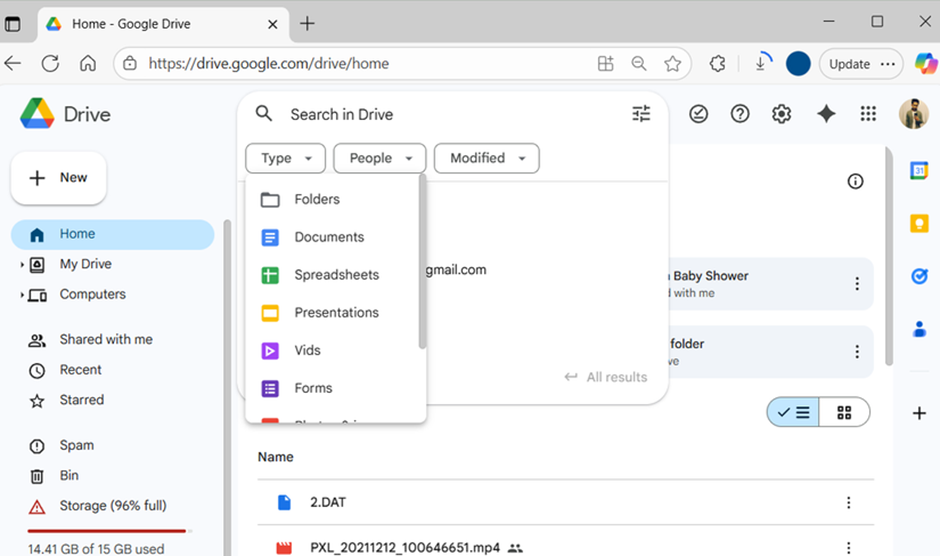
One of the quickest ways to clean up your search results is to filter by file type. Instead of scrolling through dozens of documents, tell Google Drive exactly what kind of file you’re looking for.
Google Drive lets you filter by:
- Documents (Docs)
- Spreadsheets (Sheets)
- Presentations (Slides)
- PDFs
- Images
- Videos
- Folders
Example: If you’re looking for a monthly report and know it’s a PDF, simply select Type → PDF before or after entering your keyword.
This small step instantly removes irrelevant files and helps you zero in on the right one—especially useful if your Drive is loaded with years of content.
2. Locate Files by Owner or Last Modified Date
Search by date, not memory
File type alone may not be enough when your Drive contains multiple versions of similar files. That’s where filtering by owner or last modified date becomes incredibly helpful.
If you know who created or shared the file, use the People filter and choose:
- Owner
- Creator
- Shared by
- Shared with
- All
Alternatively, use date filters to view files edited:
- Today
- This week
- Last 30 days
- This year
- Custom date ranges
Perfect when you vaguely remember when you worked on something but not what it was called.
3. Search Inside Files to Find Exact Keywords
Go beyond file names
Even when you forget the title of a file, you can often remember a phrase or keyword from inside it. Google Drive’s search bar can scan the contents of Docs, Sheets, Slides, PDFs, and more.
For example:
If you type “Q3 sales projections”, Drive will show every file containing that phrase — even if the filename doesn’t mention sales or projections.
Combine this with filters like file type or date, and finding a document becomes incredibly easy.
4. Master Google Drive’s Advanced Search Tools
Advanced search isn’t as scary as it sounds
When basic filters aren’t enough, Google Drive’s Advanced Search comes to the rescue. Click the small funnel icon next to the search bar to open a full menu of targeting options.
With Advanced Search, you can filter by:
- File type
- Owner
- Location (folder)
- Last modified date
- Keywords inside files
You’ll also find specialized filters for:
- Approvals
- E-signatures
- Follow-up items
These are extremely helpful if you collaborate often or manage shared projects.
5. Use Search Operators for Faster Results
Turn keywords into search superpowers
Just like Gmail, Google Drive supports powerful Boolean search operators. These help you skip menus and jump straight to the files you need.
Useful examples:
- type:pdf → only PDFs
- owner:me → files you own
- title:budget → files with “budget” in the title
- content:meeting → files containing the word “meeting”
Combine them for precision searches:
type:docx owner:me content:routine
This finds Word documents you created that contain the word “routine.”
Once you get used to operators, they become faster than clicking through menus.
6. Use the Recent and Starred Folders
Your shortcuts to frequently accessed files
Sometimes the fastest search is no search at all.
Recent Folder
The Recent tab shows all the files you’ve opened or edited lately. You can refine this list by:
- File type
- Owner
- Modified date
Ideal when you’re working on an ongoing project and can’t remember filenames.
Starred Folder
Star your most important files—like monthly reports, team presentations, or key documents. This creates a simple shortcut you can access anytime.
You can also pair this with color-coded folders to keep your Drive visually organized.
7. Search Directly From Your Browser’s Address Bar
Skip extra clicks—search like a power user
You don’t even need to open Google Drive to start a search. Most modern browsers allow “site search” shortcuts.
In Chrome:
- Go to Settings → Search engine → Manage search engine and site search
- Under Site Search, click Add
- Use these fields:
- Search engine: Google Drive
- Shortcut: @Drive
- URL: https://drive.google.com/drive/search?q=%s
- Click Save
Now you can type in the address bar:
@Drive sales projections
and instantly pull up results.
This works in Edge and many other browsers too.
Final Thoughts
Finding files in a cluttered Google Drive shouldn’t feel like searching for a needle in a digital haystack. Once you learn how to use file type filters, advanced search tools, operators, and browser shortcuts, you’ll be able to locate documents in seconds.
Each tool serves a different purpose:
- Need quick sorting? Use file type or date filters.
- Can’t remember the name? Search inside the file.
- Want precision? Use operators or Advanced Search.
The more you practice these Drive hacks, the faster and easier your file searches will become.