
5 Gemini & Workspace Hacks to Boost Productivity
Unlock your productivity with these 5 Gemini and Workspace hacks
5 Gemini and Google Workspace Hacks That Save Me Hours Every Week
Google has woven Gemini so deeply into Workspace that it can feel overwhelming trying to figure out what’s genuinely helpful and what’s just noise. While I don’t care much for generating quirky AI images like “Nano Banana,” I am always looking for practical ways to use Google’s AI tools to work faster and smarter.
Gemini is now built into nearly every app across the Google Workspace ecosystem. And if you’re not using its best productivity features, you’re missing out on a huge advantage. Below are the Workspace-integrated Gemini hacks that consistently save me hours each week — from Docs and Sheets to Meet and Gmail.
1. Use the Gemini Sidebar to Generate, Analyze, and Summarize Anything
Available across the entire Workspace suite
The Gemini sidebar is the core of the AI experience inside Google Workspace. You can open it from the Gemini icon at the top of any Workspace app, right beside your Google Apps and account menu.
It works just like the regular Gemini chatbot — but smarter, because it understands the context of your Workspace data and can take actions within your documents, spreadsheets, chats, or slides.
Here’s what I use the sidebar for:
- Help me write assistance in Docs to create drafts or refine content
- Data analysis in Sheets — charts, formulas, summaries
- Converting complex files like PDFs or slide decks into clean summaries
- Generating audio overviews, which are perfect for reviewing long content while on the go
The major time-saver? I no longer have to sift through pages of text. Gemini pulls out the key insights, giving me summaries and action steps in minutes instead of hours.
2. Take Notes Automatically in Google Meet
Stop scrambling — let Gemini capture everything
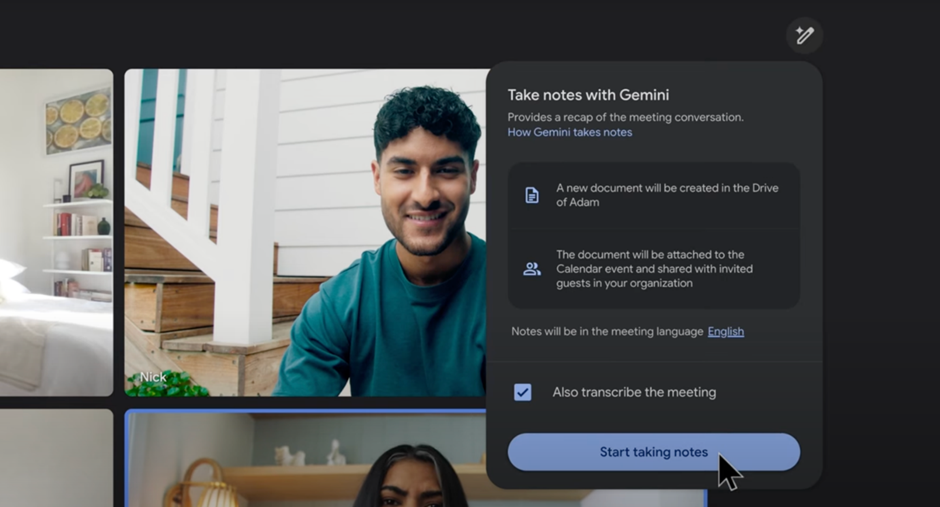
If you’re someone who multitasks during meetings or struggles to take detailed notes, this feature is a lifesaver. Gemini’s Take notes for me option in Google Meet listens and generates clear, structured meeting notes — not just a transcript.
To activate it, click the pencil icon in the top-right corner of your Meet window.
Gemini will:
- Create a new Google Doc
- Add key discussion points
- Highlight action items
- Optionally store transcripts and recordings
All participants will also get a notification when Gemini is taking notes, ensuring transparency. This frees you to stay engaged in the conversation instead of frantically typing.
3. Create Custom Document Templates Instantly
No more formatting headaches in 2025
We’ve all used the default templates in Google Docs or Slides — but they rarely fit exactly what we need. Gemini’s Help me create feature lets you build custom templates tailored to your workflow.
Just describe what you want (invoice, proposal, poster, schedule, spreadsheet, etc.) and Gemini builds it. Then refine it in the sidebar until it’s perfect.
Personally, I’ve used it to create:
- Invoices
- Content calendars
- Project trackers
- Presentation templates
- Even creative poster designs
Gemini handles the structure and formatting, so you can focus on the ideas instead of wrestling with tables and layouts.
4. Summarize Long Emails and Chat Threads
Catch up in minutes, not hours
Gemini’s summary feature might seem like a gimmick — until you return from a day off and find 47 unread messages in a single Gmail or Google Chat thread.
Instead of reading every response, Gemini gives:
- Short summaries of each topic
- Key decisions
- Questions asked
- Follow-up items
You can then ask the sidebar clarifying questions like:
- “What decisions were made?”
- “Did anyone mention the deadline?”
- “What was the final approval?”
In fast-moving teams, this one feature alone is a game-changer.
5. Search Your Entire Google Drive With AI — Not Keywords
Gemini understands intent, not just text
When enabled under smart Workspace features, Gemini becomes the best way to search your Drive. Traditional keyword search often fails to find exactly what you need, especially if the phrasing isn’t an exact match.
Gemini’s natural language search changes everything.
Examples:
- “Find the part of my lease agreement about painting the walls.”
- “Show me the spreadsheet with last year’s monthly expenses.”
- “Summarize the contract in my Drive that mentions royalty payments.”
It doesn’t matter if the file names are vague — Gemini understands meaning, not just words. It can pull out specific clauses, values, or summaries instantly.
Why I Rely on These Gemini-in-Workspace Hacks
As a creative professional, I don’t want AI writing everything for me — and I definitely don’t need flashy image generators. What I do want is an AI assistant that handles the tedious parts of my workflow so I can spend more time actually creating.
By using Gemini across Google Workspace, I’ve cut hours from my week:
- No more manual note-taking
- No more formatting headaches
- No more digging through long documents
- No more inbox overwhelm
- No more frustrating Drive searches
These small improvements add up fast. If you work inside Google Workspace daily, try these hacks — the productivity boost is immediate.